
Menu, services and discounts
Manage your FiveM business menu with Eleven Comercios: products from ox_inventory storage, prices, stock, categories, item-less services and discounts.
The Menu section holds everything the business sells. It has two tabs: Products (with Services and Categories inside) and Discounts.
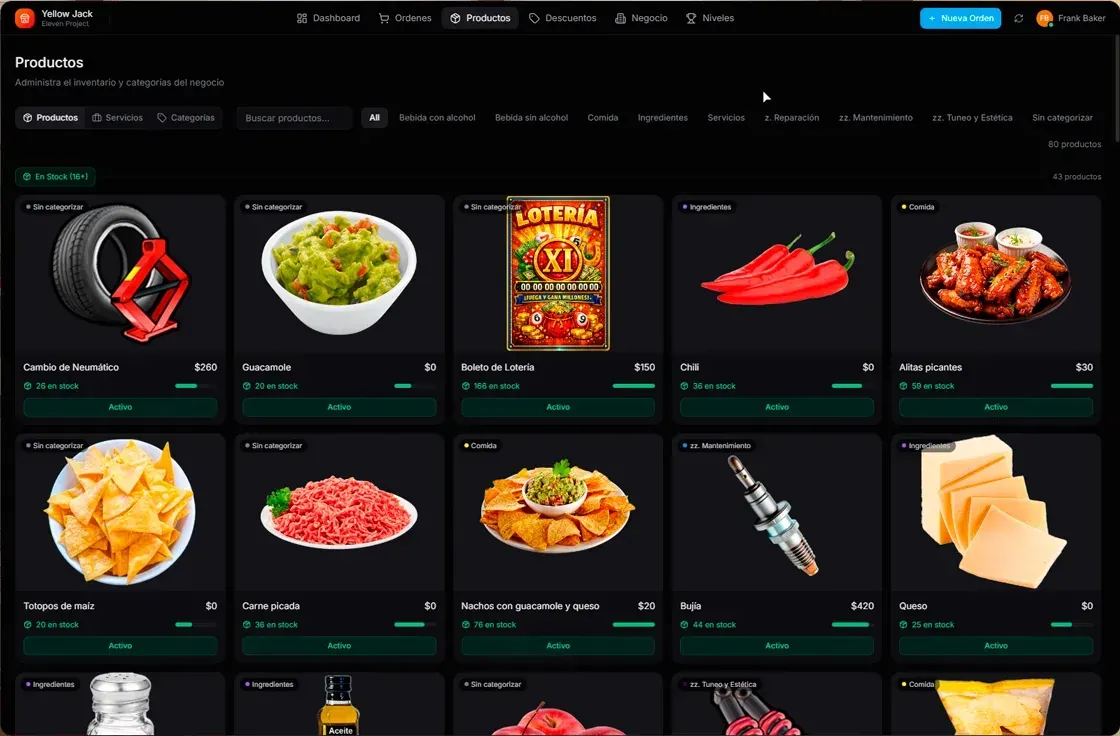
Products
A product is an ox_inventory item the business sells at a price. To register one (create_items permission):
- Put the item in the business storage.
- In Menu → Products, register the item and fill in its details.
| Field | What it does |
|---|---|
| Price | What orders charge. |
| Category | To group and filter (Food, Drinks…). |
| Image | Your own URL. Empty = the item's ox_inventory image. |
| Available | Whether it shows up when creating orders. |
| NPC price and NPC sellable | What the NPC seller charges and whether it can sell it. |
| Delivery | Whether NPCs can order this product for home delivery (see Home delivery). |
Stock is worked out automatically from what's in the business storages. The tablet groups it into: in stock (16 or more), low (6–15), critical (1–5) and out of stock. Low-stock products also show up on the Home panel.
Note
Items listed in Config.BlockedItems (money and black_money by default) can't be registered as products.
Services
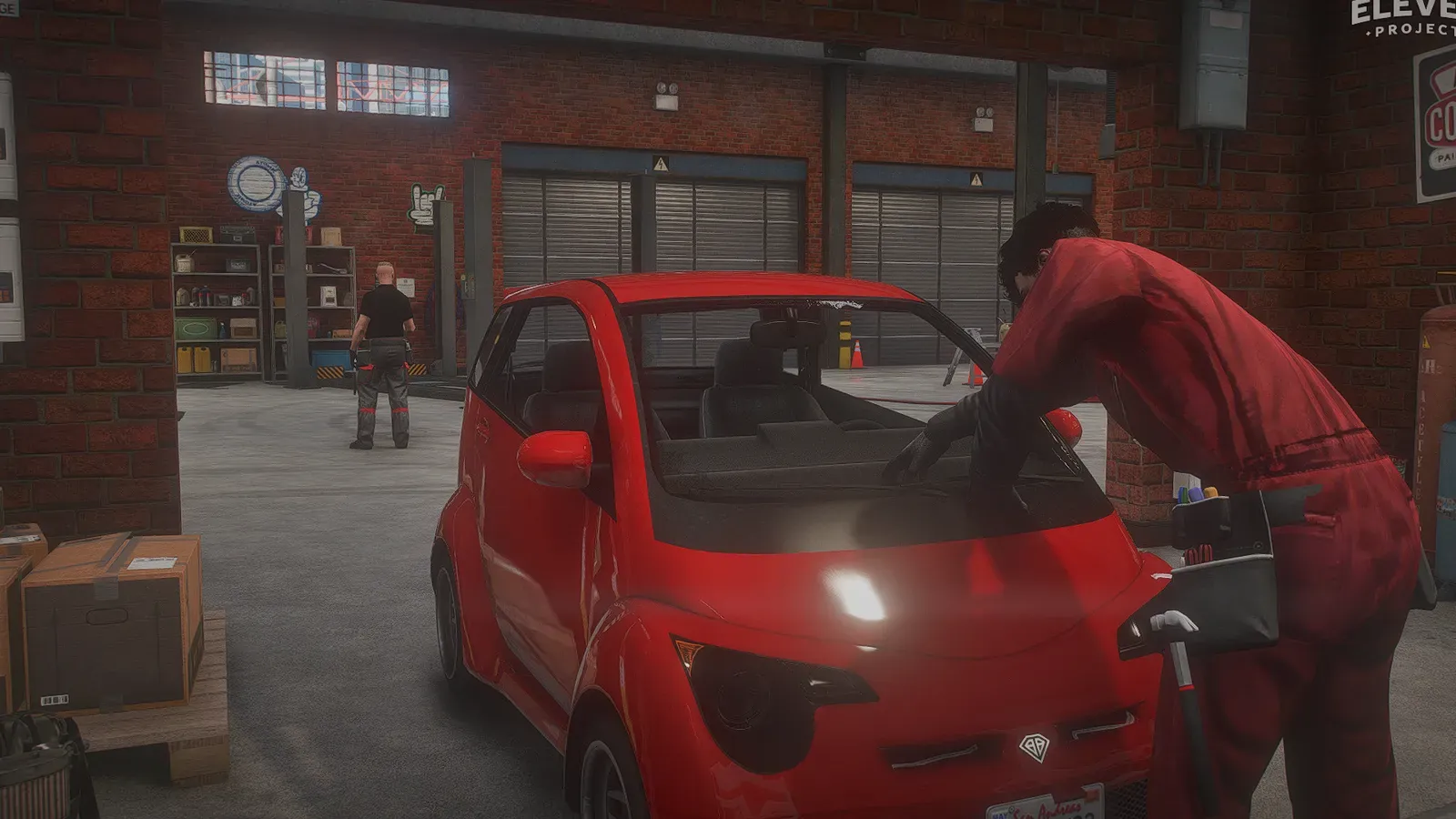
A service is something you charge for without handing over an item: a repair, a membership, an entry ticket… It has a name, description, price and an optional image. You add it to orders just like a product.
Categories
Create categories with a name and color to organize the menu. They power the Products filters and the sales-by-category chart on the Home panel.
Discounts and deals
In Menu → Discounts (view_convenios permission) you create reductions that apply when an order is created:
| Field | What it does |
|---|---|
| Name | For example, the name of the business you have the deal with. |
| Discount | Percentage taken off the total. |
| Type | Discount (your own promotion) or Agreement (a deal with another business or faction). |
| Color | To spot it in orders and on the dashboard. |
| Active | Switch it off to stop offering it without deleting it. |
The Home panel shows how many orders used each discount and how much was taken off in total. Discounts and deals also count towards levels (the "Deals signed" and "Orders with a deal" metrics).