Opening the tablet and permissions
The Eleven Comercios business tablet for FiveM and Qbox: who can open it, the HOME key, its sections and how the boss hands out permissions per rank.
Opening and closing
Press HOME to open the tablet and the same key to close it. Each player can rebind it in GTA Settings → Key Bindings → FiveM → "Open business tablet". The default key for new players is Config.OpenTabletKey.
To open it you need to:
- Have the job of a business registered in the admin panel.
- Be on duty. The owner (
isbossgrade) can also open it off duty.
If the job isn't a registered business, the key does nothing.
Sections
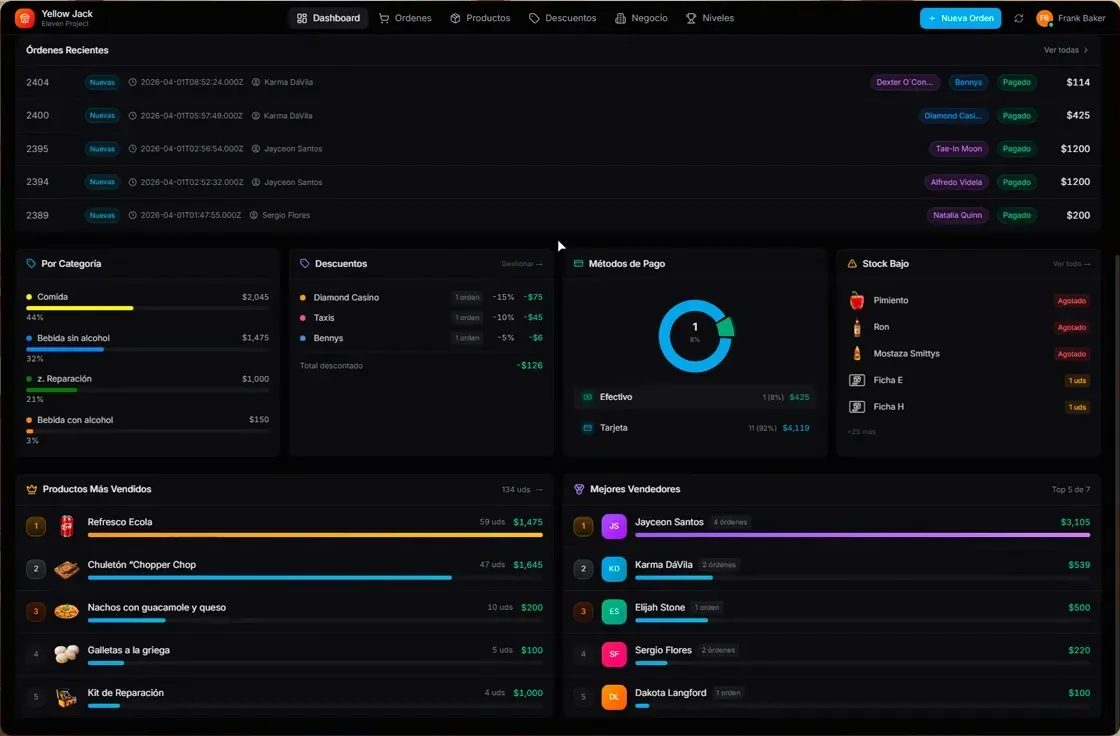
The top bar groups the tabs into six sections. Each employee only sees what their rank is allowed to use and what the business has enabled. The tablet uses the language set in Config.Locale (English or Spanish).
| Section | Tabs | What it takes |
|---|---|---|
| Home | Home | view_dashboard permission |
| Orders | Orders | view_orders permission |
| Menu | Products · Discounts | view_items · view_convenios |
| Street sales | Food trucks · Carts · Vending | Owner only, with the street sales license |
| Purchases & fleet | Wholesale · Vehicles · Fuel | buy_wholesale or view_purchases and an assigned wholesaler · view_vehicles · view_fuel and an assigned gas station |
| Business | Management · Levels · Condition | view_employees · view_niveles · view_maintenance |
Management has more tabs inside (staff, permissions, points, licenses…). They are covered in Business management.
Note
An admin can switch whole sections off for every business or for a single one from Settings in the panel. A disabled section is hidden from everyone, owner included. See Admin panel.
Note
The tablet also hides, on its own, whatever needs a resource you don't run: wifi and the social network (eleven-phone), company cards (eleven-banking), decoration (eleven-housing), applications (Config.Integrations.Applications) and the fuel tab. See Requirements.
Who gets which permissions
- The highest
isbossgrade of the job has every permission. It can't be taken away. - Every other grade starts with no permissions. The owner hands them out in Business → Management → Permissions, rank by rank.
- Whoever manages staff can't promote anyone to a grade equal to or higher than their own.
Permissions are grouped like this:
| Group | Permissions |
|---|---|
| Dashboard | View the Home panel |
| Orders | View, create, edit (move and change payment status), delete and refund orders |
| Products | View, create, edit and delete products and categories |
| Discounts | View, create, edit and delete discounts and deals |
| Staff | View, hire, fire, change rank, pay bonuses, read applications and manage them |
| Points | View, and place, move or delete premises points |
| Decoration | Decorate the premises |
| Licenses | View and buy licenses |
| Vehicles | View and buy vehicles |
| Levels | View levels |
| Fuel | View the gas station, refill tanks and set prices |
| Wholesale | View the history and place orders |
| Fines | Pay fleet fines with the business account |
| Premises condition | View cleanliness and pending tasks |
The exact key of each permission is in Commands and permissions.
Viewing an order's receipt
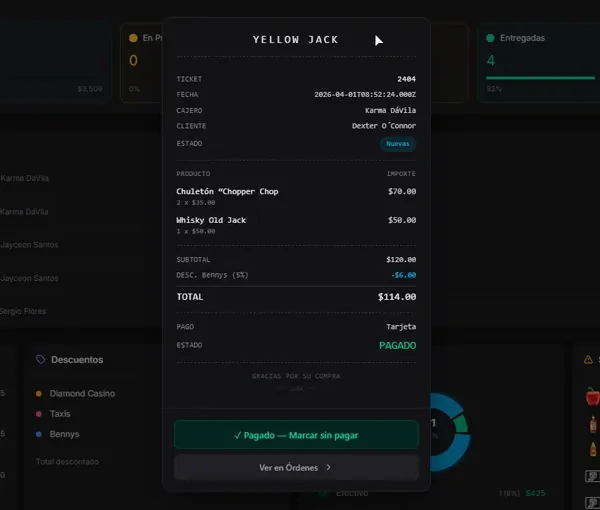
From Home or Orders, click an order to see its receipt: products, discount applied, total, payment method and status. From the receipt you can mark it as paid or unpaid and, with the refund_orders permission, refund an order paid by card terminal (see Orders and payments).