
First steps
How Eleven Phone works in FiveM: opening it, walking with it, the ALT cursor, PIN, FaceID and fingerprint, the control center, alerts and the home screen.
Opening and closing
- F1 (or whatever key each player has chosen) opens and closes the phone. The
/phonecommand works too. - If the phone is an item (the default), you need the
phoneitem on you. Using it from the inventory also opens it. - When it opens, the character takes the phone out with an animation from the emote menu (
/e phone) and raises it to their ear during calls (/e phonecall).
The phone closes by itself if you lose the item (stolen or dropped), if you die or go down, or if you're cuffed. Without the item on you it doesn't ring either: no incoming calls or notifications pop up.
Cursor and movement
The phone opens with the cursor already on the screen, ready to tap, and you can still walk and drive: while the pointer is on the phone, the game keeps your movement keys. As soon as you type into a text field, the keyboard goes to the phone.
- Left ALT hands the mouse back to the game (to look around or aim), and pressing ALT again returns it to the screen.
- While a call is ringing, Enter answers and Backspace hangs up, even with the phone put away.
PIN, FaceID and fingerprint
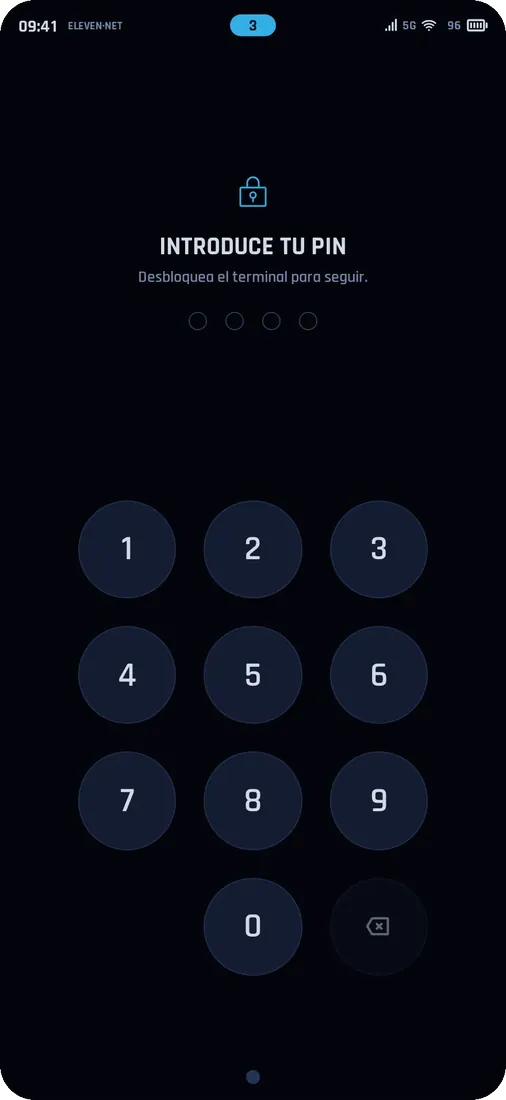
- A PIN is mandatory. The first time you open the phone, the setup screen asks for a 4-digit PIN.
- FaceID is on by default: it unlocks just by looking at the phone, unless your face is covered (anything in the character's mask slot). Then it asks for the PIN.
- Fingerprint: enable it in Settings → Lock & biometrics and hold your finger on the sensor on the lock screen. Handy for players who play masked.
- Five wrong attempts in a row lock the keypad for 30 seconds.
All of this is set in Config.Security (see Config reference). If a player forgets their PIN, staff can clear it with /resetpin (see Commands).
Lock screen
It shows the time, pending notifications and two shortcuts: the torch and the camera. Swipe up to unlock.
Control centre
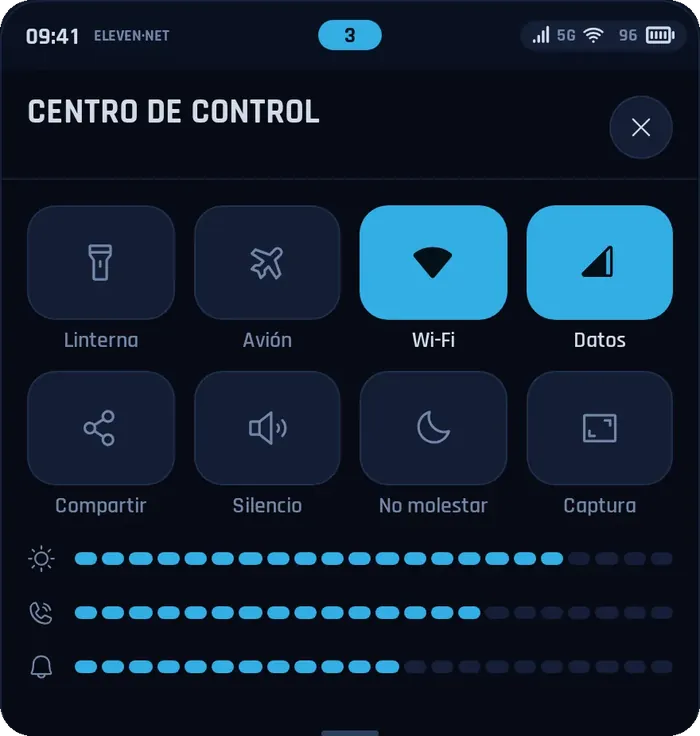
The quick tiles: Torch, Airplane, Wi-Fi, Data, Hotspot, Silent, Do not disturb and Screenshot, plus brightness and the ringtone and notification volumes.
Notifications
The shade keeps each app's notifications until you clear them. Do not disturb silences them, and Settings → Notifications lets you choose per app. An emergency alert or a critical alert sent by another resource takes over the full screen (see Exports).
Home screen
- At the top you get the balance, messages and weather widgets, plus the latest photo from your gallery.
- Right-click the home screen to enter arrange mode: drag apps and the photo widget wherever you want and tap Done.
- Non-system apps are installed and removed from the Store (see Store, Settings and utilities).
No signal
If your server uses coverage, the bars drop as you move away from the masts until there's no service at all: no SMS and no calls (except 911), and photos take longer to load. Whatever is already on the phone stays visible.